
In this project
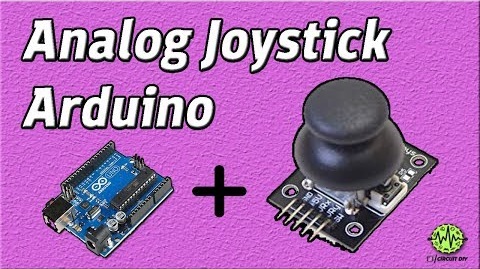
In this tutorial, we will learn how to interface an Analog joystick module with Arduino. The analog joystick module is similar to two potentiometers connected together, one is for vertical movement (Y-axis), the other is for horizontal movement (X-axis). The potentiometers are variable resistors and they act as sensors that provide us with varying voltage depending on their rotation.
Hardware Required
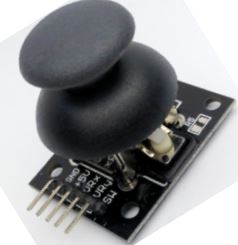
Following are the necessary hardware items for Interfacing Analog Joystick with Arduino:
Working Explanation
| S.NO | Component | Value | Qty |
| 1. | Arduino | Uno R3 | 1 |
| 2. | USB Cable A/B | - | 1 |
| 3. | Joystick Module | Analog | 1 |
| 4. | Breadboard | - | 1 |
| 5. | Connecting Wires | - | 1 |
Joystick module provides an analog output to the Arduino and the output voltages provided by the sensor keeps on changing depending on the direction of joystick. Microcontroller comes with an inbuilt analog to digital converter, which interprets these voltages and provides the direction of movement. When we move the joystick in the horizontal direction, the voltage at Rx pin changes. Similarly, the voltage at Ry pin changes when we move the joystick in a vertical direction.
Connection
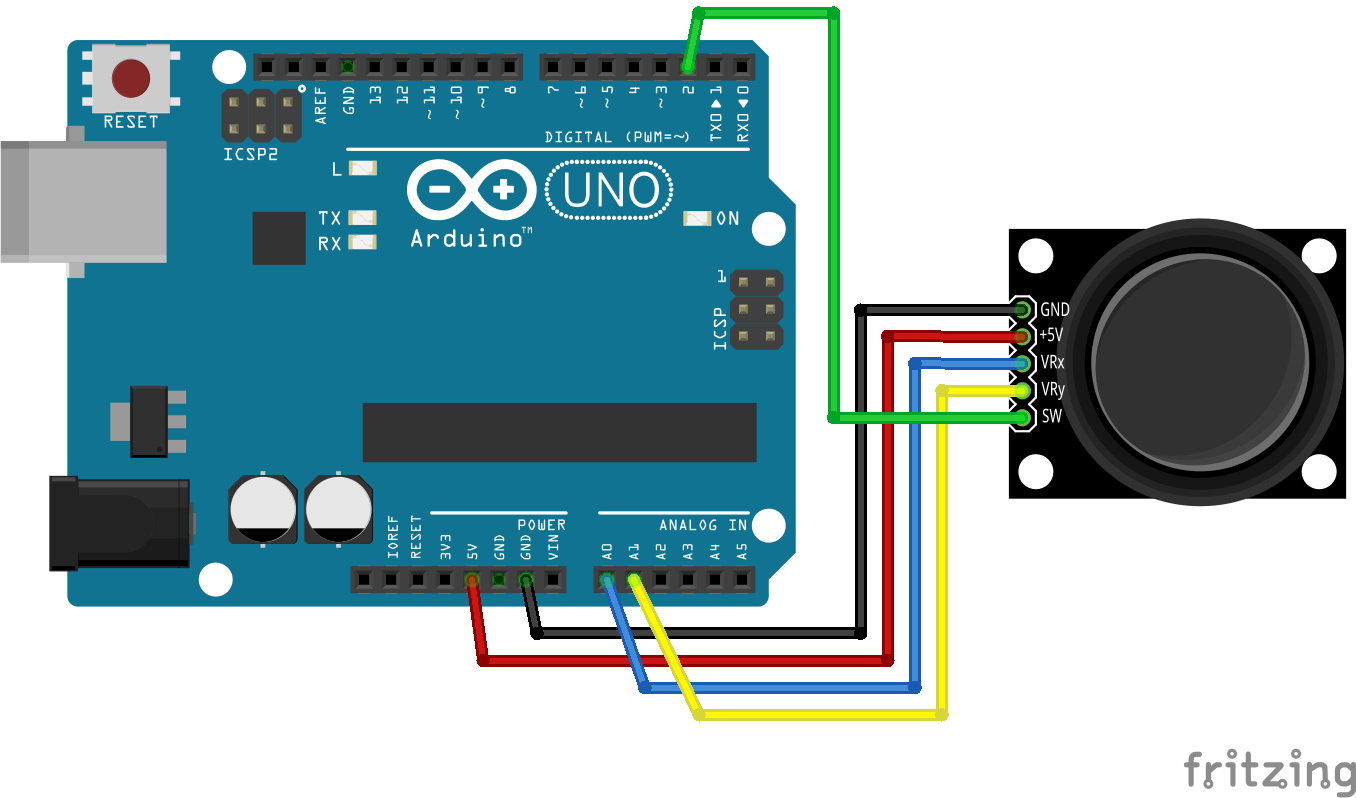
- Connect the GND of the joystick module to the GND of Arduino.
- Then +5V pin of joystick module to the VCC of Arduino
- Connect the VRx pin of the joystick module to the A0 of Arduino.
- Connect VRy pin of joystick module to A1 of Arduino
- At last, the SW pin of joystick module to pin 2 of Arduino
Application
- The joystick is used for video games that require a change in cursor position in a 2-D plane.
- They are used by military and aviation sectors
Circuit Diagram
Arduino Code
#define joyX A0
    #define joyY A1

    void setup() {
      Serial.begin(9600);
    }

    void loop() {
      // put your main code here, to run repeatedly:
      xValue = analogRead(joyX);
      yValue = analogRead(joyY);

      //print the values with to plot or view
      Serial.print(xValue);
      Serial.print("\t");
      Serial.println(yValue);
    }


Discussion
Be the first to comment